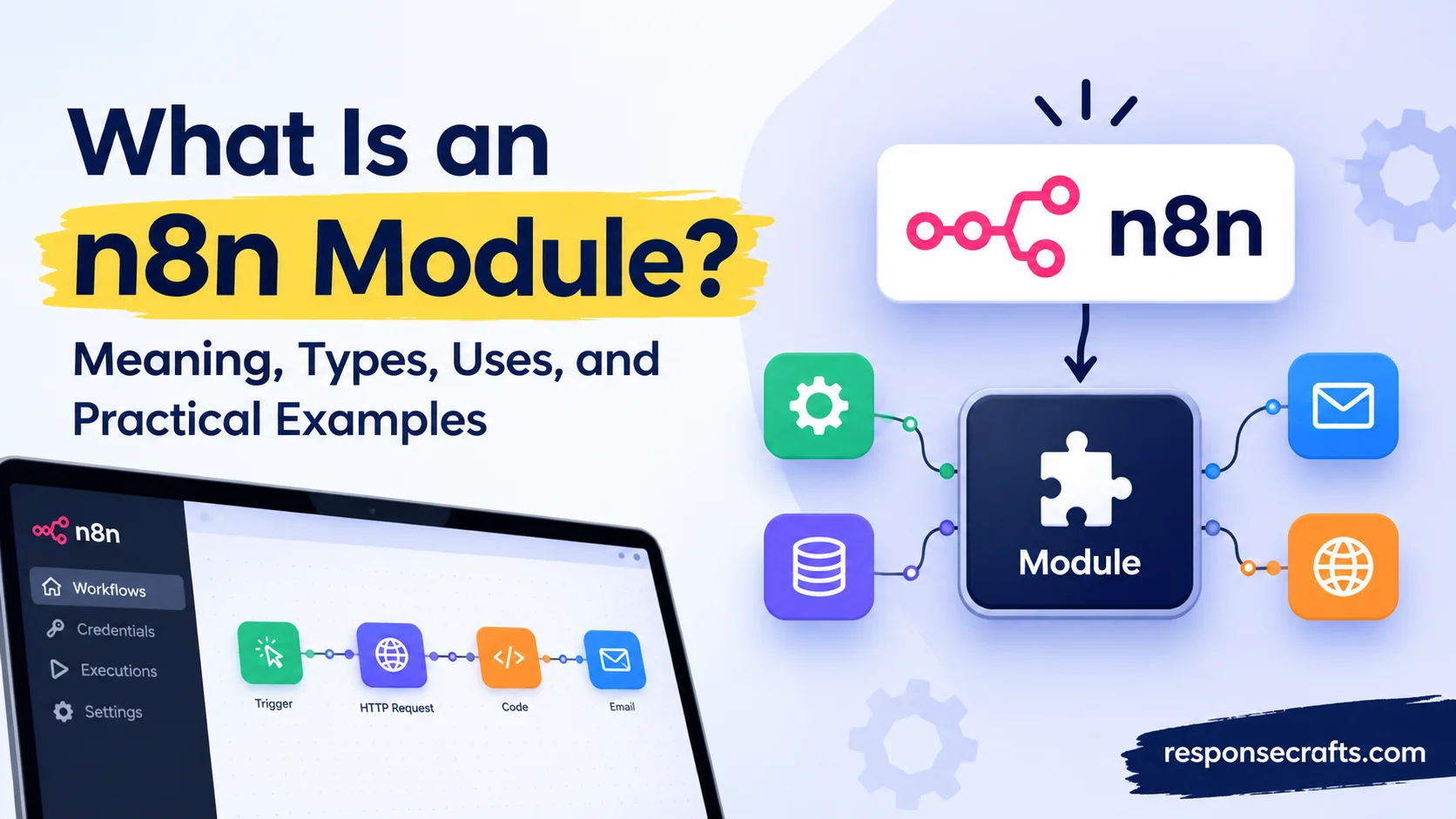
When you start exploring n8n automation, you’ll often come across the term n8n module, which refers to a building block used to create automated workflows. In n8n, these building blocks are commonly called nodes, and each node performs a specific task within a workflow. For example, one node can receive data from a webhook, another can process information, and a third can send an email automatically. By connecting these nodes, you can build powerful automations without writing large amounts of code. Understanding how n8n modules work helps you see how different tools and services can communicate with each other.
An n8n module can serve different purposes depending on the job you want to automate. Some nodes connect to popular applications such as Google Sheets, Slack, and Gmail, while others handle data processing, conditional logic, or API requests. For instance, you could create a workflow that collects new customer details from a form, checks the submitted information, saves it to a spreadsheet, and sends a confirmation email. Each step uses a node to complete a particular action. These workflow components work together to reduce repetitive tasks, limit manual errors, and help businesses manage their daily operations more efficiently. You can also combine different nodes to create more advanced automation systems as your needs grow.
Learning about the different types of n8n nodes makes it easier to choose the right tools for your project. Common categories include trigger nodes, which start workflows, action nodes, which perform tasks, and logic nodes, which control how data moves through a workflow. You may also use code nodes for custom operations or HTTP Request nodes to communicate with external services. Whether you want to automate marketing campaigns, organize customer information, connect business applications, or build an AI-powered assistant, n8n provides flexible options for different requirements. Once you understand what each module does, you can create practical workflows that save time, improve productivity, and connect the tools you already use.
Quick Answer
An n8n module generally refers to a component that performs a particular task in an automation workflow. However, n8n officially calls its standard workflow building blocks nodes, rather than modules.
Each node performs a specific function. A trigger node might detect a new form submission, another node might organize the submitted information, and a third node might save it to a customer database.
For example, an automated lead management workflow could use:
- Trigger node: Detects a new lead from a form or webhook.
- Processing node: Checks and organizes the submitted details.
- Action node: Creates a contact in a CRM.
- Notification node: Sends a message to the sales team.
Together, these nodes form a workflow that handles a task from beginning to end. You can build many workflows through n8n’s visual interface without writing an entire application from scratch.
Comparison Overview
Before exploring individual n8n components, it helps to understand how the main terms differ. A module, node, integration, and workflow may sound similar, but each describes a different part of an automation system.
| Component | Meaning | Example | Main purpose |
| n8n node | A component that performs a specific operation | HTTP Request node | Executes a task |
| Trigger node | A node that starts a workflow | Schedule Trigger | Detects an event or starts a scheduled run |
| Action node | A node that performs an operation | Telegram message action | Sends or updates information |
| Integration | A connection to an application or service | Google Sheets integration | Communicates with an external tool |
| Community node | A node developed outside n8n’s built-in collection | A third-party service connector | Adds integration options |
| Sub-workflow | A separate workflow called by another workflow | Shared data-processing workflow | Reuses a series of steps |
| Programming module | A software component used in code | A JavaScript package | Provides reusable code or functionality |
The important distinction is that a node is an individual building block, while a workflow connects multiple steps into a complete process. An integration may provide several node operations, and a sub-workflow can group multiple steps into a reusable process.
For example, imagine a workflow that processes online orders. A trigger starts the process when an order arrives. An application integration retrieves customer information, a conditional node checks the order value, and an action sends the appropriate notification.
Each component has its own responsibility. The workflow connects them and determines when each step runs.
Main Differences Between n8n Module and n8n Node
The phrase n8n module can mean different things depending on where you encounter it. Someone might use it informally to describe a workflow component, while a developer might mean a software module or package.
An n8n node has a more specific meaning. It’s a component that you add to the workflow editor and configure to perform an operation.
What Is an n8n Module?
In general software terminology, a module is a self-contained part of a larger system. It groups related functions or features so other parts of the system can use them.
For example, an application might have separate modules for sending emails, managing customers, and processing payments. Each module handles a particular responsibility.
When people discuss an n8n module, they may be referring to a node, an integration, a reusable workflow, or a code component. The intended meaning depends on the context.
However, n8n’s standard workflow editor uses nodes as its main building blocks. Therefore, if you’re learning how to create automations, start by understanding nodes rather than searching for a separate universal feature called an “n8n module.”
What Is an n8n Node?
An n8n node is a configurable component that performs a specific operation during workflow execution. You add nodes to the editor, choose their settings, connect them, and define how information moves between them.
Different nodes perform different jobs. For example:
- HTTP Request: Sends requests to APIs and retrieves or submits information.
- Edit Fields (Set): Sets or changes data fields.
- IF: Routes data according to a condition.
- Merge: Combines data from different inputs.
- Schedule Trigger: Starts a workflow according to a schedule.
- Code: Runs JavaScript or Python in supported configurations and versions.
Module vs. Node: The Key Differences
| Feature | Module in general software terminology | n8n node |
| Definition | A reusable software component | A workflow component with a defined operation |
| Typical environment | Codebases, packages, and software systems | The n8n workflow editor |
| Configuration | Depends on the programming environment | Usually configured through node parameters |
| Execution | Depends on the software calling it | Runs as part of a workflow execution |
| Example | A JavaScript package for date handling | A Date & Time node |
| Relationship | May contain functions or other components | Can be part of a larger integration or workflow |
These terms aren’t always mutually exclusive. A developer could build an n8n node using software modules, while an ordinary n8n user could informally call that node a module.
The practical lesson is simple: when working inside n8n, use the term “node” for the components you add to workflows.
What Is n8n and How Does It Work?
n8n is a workflow automation platform that connects applications and services so they can exchange information and perform tasks automatically. It supports visual workflow building, API connections, data transformation, and custom development. n8n can also support AI-powered workflows.
Rather than writing an entire integration from scratch, you can connect available nodes and configure their behavior. When a workflow runs, n8n executes the relevant steps and passes data between them.
How n8n Workflows Operate
A typical workflow has three main parts:
- Trigger: Determines what starts the workflow.
- Processing: Changes, checks, or organizes the information.
- Action: Performs the final operation, such as creating a record or sending a message.
Consider an online store that wants to notify its warehouse whenever a new order arrives.
The workflow might follow this sequence:
- A trigger detects a new order.
- An application node retrieves the order details.
- A processing node selects the required fields.
- A conditional node checks whether the order needs special handling.
- A notification node sends the relevant details to the warehouse team.
Once configured and activated, the workflow can handle qualifying orders without requiring an employee to copy information manually each time.
Can You Use n8n Without Coding?
Yes. Many common workflows can be built through the visual editor using built-in nodes and application integrations.
You select operations, enter settings, connect components, and map data between steps. For more advanced tasks, you can use expressions, API requests, or custom code.
For example, connecting a form to a spreadsheet may require little or no programming. Connecting an unusual internal application might require API knowledge or a custom integration.
Cloud and Self-Hosted Options
n8n offers a hosted cloud option and self-hosting options. With hosted n8n, the service provider manages the underlying infrastructure. With self-hosting, you manage the environment, updates, access controls, and other operational responsibilities.
Types of n8n Modules and Nodes
Although users often search for n8n modules, understanding node types provides a clearer picture of how automation works.
Trigger Nodes
Trigger nodes start workflows when a defined event occurs or a schedule runs. Without an appropriate trigger, an automated process generally needs another way to initiate execution, such as a manual run or a workflow calling it.
Common trigger patterns include:
- Schedule-based triggers: Start workflows at defined times or intervals.
- Webhook triggers: Receive HTTP requests from external systems.
- Application triggers: Respond to supported events in connected services.
- Manual triggers: Let you start a workflow yourself for testing or controlled execution.
For instance, a scheduled trigger could start a report-generation workflow every weekday morning. A webhook trigger could begin a workflow when a website sends new customer information.
The trigger you choose depends on how the information becomes available and how quickly the workflow needs to respond.
Action Nodes
Action nodes perform operations within a connected application or service. They can create records, retrieve information, update existing data, send messages, and perform other supported tasks.
Suppose a business receives a customer inquiry through a form. An action node might create a new contact in a CRM. Another could send a confirmation message.
An integration doesn’t necessarily offer every possible operation. Before building a workflow, check the node documentation to confirm that it supports the exact action you need.
Core and Data-Processing Nodes
Core nodes help control workflows and manipulate information. They aren’t limited to one external application.
Examples include:
- Edit Fields (Set): Adds, changes, or selects fields.
- IF: Routes data according to a condition.
- Filter: Keeps data that meets specified criteria.
- Merge: Combines information from multiple inputs.
- Loop Over Items: Processes items in batches or repeated steps when appropriate.
- Code: Handles custom transformations that aren’t convenient through standard nodes.
These components are particularly useful when different applications store the same information in different formats.
For example, a form might label a field customer_email, while a CRM expects an email property under a different field name. A data-processing node can help prepare the information before the CRM receives it.
Application Integration Nodes
Application nodes connect n8n to particular services. Depending on the integration, a node may offer multiple resources and operations.
Application nodes commonly help users:
- Create or update records.
- Retrieve information.
- Send notifications.
- Upload or download files.
- Manage supported objects in an application.
You generally need to configure the appropriate credentials and permissions before an integration can access a service.
AI-Related Nodes
n8n also provides components for building AI-powered workflows. Depending on the task and available integrations, these can connect language models, tools, data sources, and other services.
For example, a customer-support workflow could classify an incoming message, draft a suggested response, and send the result to a human agent for review.
AI workflows require careful design. Model output can be incorrect, and sensitive actions should have suitable safeguards. For important decisions, use validation, restricted permissions, and human approval where appropriate.
Community Nodes
Community nodes extend n8n with integrations created outside its built-in node collection. They can be useful when an application or service isn’t covered by the standard integrations you need.
However, third-party nodes deserve careful review. Check the developer, package maintenance, permissions, compatibility, and security implications before installation.
How Do n8n Nodes Work Together?
Individual nodes become useful when they form a connected workflow. Each step receives relevant input, performs its configured operation, and provides output for later steps.
Data Moves Between Connected Nodes
n8n passes data between workflow steps. Nodes can read fields from previous outputs and use them in later operations.
Suppose a form collects the following information:
| Field | Example value |
| Customer name | Jordan Lee |
| jordan@example.com | |
| Request type | Product inquiry |
| Priority | High |
A processing node might select the name and email fields. An IF node could check whether the priority equals “High.” The workflow could then route high-priority requests to a faster response path.
This process is called data mapping when you reference information from earlier nodes. n8n supports mapping through the interface and expressions.
Conditions and Branches Control Workflow Behavior
Not every item needs the same treatment. Conditional nodes let you create different paths based on the information received.
For example:
- High-priority requests go to the support manager.
- General inquiries enter the standard support queue.
- Incomplete submissions go to a validation step.
This is more flexible than creating a separate workflow for every possible situation. However, the conditions must match the incoming data accurately or requests may follow the wrong path.
Testing Helps Catch Errors Early
A workflow can appear correct on the canvas and still fail during execution. An application may reject credentials, a field may be missing, or an API may return an unexpected response.
Test individual steps with representative data before relying on the entire workflow. Check the input and output of each node to find where the problem begins.
Practical Examples of n8n Modules in Real Workflows
The easiest way to understand n8n components is to see how they solve everyday problems. The following examples show how individual nodes can work together to complete a larger task.
Example: Automating Lead Management
A business receives leads through a website form. Someone would normally copy each submission into a CRM and notify the sales team. An n8n workflow can connect these steps.
Possible workflow:
- Trigger: Receives a new form submission.
- Data processing: Extracts the customer’s name, email, and inquiry.
- Validation: Checks whether the required information exists.
- CRM action: Creates a new lead in the connected system.
- Notification: Sends the sales team a message about the new lead.
The workflow can also include a branch for incomplete submissions. Instead of creating a record with missing information, it can flag the submission for review.
Practical benefit: The sales team spends less time copying data and can focus on responding to potential customers.
Example: Sending Automated Email Notifications
Imagine an online service that needs to send an email whenever a new customer registers.
The workflow could use a registration trigger, a data-processing node, and an email integration. The processing step prepares the customer’s details before the email action runs.
A sensible workflow should also account for missing email addresses and failed delivery attempts. Depending on the email provider, you may be able to capture delivery status or use an error-handling path.
This automation is useful for registration confirmations, internal alerts, appointment reminders, and similar communication tasks.
Example: Synchronizing Data Between Applications
Businesses often store related information across multiple applications. A customer might update their details in one system while an older record remains unchanged elsewhere.
An n8n workflow can retrieve the updated record, transform its fields, and send the changes to another application through a supported integration or API.
For example, a workflow might:
- Retrieve customer records from a source system.
- Check which records have changed.
- Map the source fields to the destination format.
- Update matching records in the destination system.
- Record errors for later review.
This approach reduces repeated data entry. However, reliable synchronization requires rules for duplicate records, conflicting updates, and failed requests.
Example: Using AI to Classify Customer Messages
AI-related nodes can help organize large volumes of incoming text. A support workflow could classify a message as a billing question, technical issue, or general inquiry.
The workflow might receive a message, pass it to an AI model, validate the result, and route it to the appropriate support queue.
For example, a message about a failed payment could be assigned to billing rather than general support.
However, the model’s classification shouldn’t automatically be treated as correct. For sensitive or high-impact actions, add confidence checks, validation rules, or human review.
Case Study: A Small Online Store
Consider a hypothetical online store that receives 80 orders each day. Its staff manually copies order details into a tracking spreadsheet and sends warehouse notifications.
Assume each order takes two minutes to process manually.
| Measurement | Manual process | Automated process |
| Orders per day | 80 | 80 |
| Handling time per order | 2 minutes | 15 seconds of assumed review |
| Daily handling time | 160 minutes | 20 minutes |
| Daily time spent | 2 hours 40 minutes | 20 minutes |
| Potential daily time difference | — | 140 minutes |
These figures are illustrative assumptions, not measured results from an actual business. The automated estimate includes 15 seconds of human review per order but excludes setup, maintenance, and exception handling.
The example shows how to evaluate automation realistically. A workflow doesn’t eliminate every responsibility; it can reduce repetitive work while leaving people in control of exceptions.
How to Use an n8n Node in a Workflow
You don’t need to understand every node before building your first automation. Start with a small task that has a clear beginning and end.
Step One: Create a Workflow
Open your n8n workspace and create a new workflow. Give it a descriptive name, such as “New Customer Notification.”
A clear name makes it easier to find the workflow later, especially when your workspace contains many automations.
Step Two: Add a Trigger Node
Choose the event that should start the workflow. For a simple experiment, use a manual trigger. For an ongoing automation, select an appropriate schedule, webhook, or application trigger.
The correct trigger depends on your data source and how the process should begin.
Step Three: Add an Action or Processing Node
Select the next node based on what you want to accomplish. You might retrieve a record, change a field, send a message, or call an API.
For a customer notification workflow, choose a suitable email or messaging integration.
Step Four: Configure Credentials and Parameters
Many application integrations require authentication. Depending on the service, you may need an API key, OAuth connection, or another supported credential method.
Use the minimum permissions needed for the task. Avoid placing passwords or secret keys directly in ordinary text fields when a credential manager is available.
Step Five: Connect the Nodes and Map Data
Connect the nodes in the intended execution order. Then map the required fields from earlier steps to the parameters used by later steps.
For example, the customer’s email address from a form submission might populate the recipient field of an email action.
Check field names and data types carefully. A missing value or incorrect mapping can cause the workflow to fail or send inaccurate information.
Step Six: Test the Workflow
Run the workflow with sample data. Review the results and confirm that every node produces the expected output.
Test normal scenarios as well as likely problems, such as missing customer information or an unavailable external service.
Step Seven: Activate and Monitor It
Once the workflow works as intended, activate or publish it using the controls available in your n8n version. Confirm that its trigger behaves correctly in the live environment.
After activation, monitor executions and investigate failures. A workflow that worked during testing may still encounter expired credentials, changed API responses, or unexpected data later.
A community node may save time when it already supports the service you need. Before installing it, check:
- Whether the project is actively maintained.
- Whether its documentation explains the available operations.
- Whether it supports your n8n version.
- What permissions or credentials it requires.
- Whether the package has a trustworthy source and known security concerns.
Community nodes can execute code within your n8n environment, so they aren’t simply harmless visual add-ons.
Read More: What Does 67 Mean in Slang? Six-Seven Meaning, Origin, and Examples
Benefits of Using n8n Nodes
Well-designed n8n workflows can make business processes easier to manage. The value comes from connecting the right components and handling information consistently.
Less Repetitive Manual Work
A workflow can handle repeated tasks such as copying records, sending notifications, and checking incoming data. This reduces the need for someone to perform every step manually.
Connections Between Different Applications
Nodes can connect services that don’t otherwise share a convenient workflow. Built-in integrations and HTTP requests allow you to work with many applications and APIs.
Clearer Workflow Logic
A visual workflow makes it easier to see the order of operations and where conditional paths begin. This can help teams understand how a process works and where changes are needed.
Flexibility for Advanced Tasks
You can combine standard nodes with expressions, API calls, and custom code. This lets you start with simple automation and add complexity only when a genuine requirement arises.
Reusable Automation Patterns
You can reuse proven designs, create workflow templates, and call sub-workflows when you need a shared process. For example, several workflows might use the same sub-workflow to validate customer records.
Reusability reduces duplication, but changes to a shared process should be tested carefully because they may affect several workflows.
Common Challenges and Limitations of n8n Modules
Automation is useful, but it doesn’t remove every technical problem. Understanding common failure points helps you design more reliable workflows.
Incorrect Credentials or Permissions
An integration may fail when an API key expires or an account lacks permission to perform an operation.
What to do: Check the credential configuration, review the application’s permissions, and confirm that the connected account can access the required resource.
Data Mapping Errors
Two applications may use different field names or formats. One may expect a date in a particular format while another returns a timestamp.
What to do: Inspect node outputs, verify required fields, and transform data before passing it to the next step.
API Rate Limits
External services often limit how many requests an account can make within a certain period. Large workflows can exceed those limits.
What to do: Follow the service’s API documentation, reduce unnecessary requests, and use batching, delays, or retry strategies where appropriate.
Workflow Failures
An external service may become unavailable or return an unexpected response. A workflow that doesn’t account for these cases may stop before completing its intended task.
What to do: Test failure scenarios and add appropriate error-handling paths. For important workflows, consider notifications and a documented recovery process.
Security and Sensitive Data
Workflows may handle customer information, API credentials, or internal business records. Poorly configured access or unnecessary data storage can expose that information.
What to do: Restrict access, use appropriate credential storage, review community nodes, and avoid retaining sensitive execution data longer than necessary.
Maintenance Requirements
Connected applications change their APIs, permissions, and available operations. Self-hosted installations also require updates and infrastructure maintenance.
What to do: Review important workflows regularly and retest them after relevant application or n8n updates.
n8n Nodes vs. Traditional Coding Modules
Although n8n nodes and programming modules share some ideas, they serve different roles in software development.
A programming module is usually a reusable piece of code. It might provide functions for processing dates, communicating with a database, or validating user input. Developers import or call that code from an application.
An n8n node is designed to work inside a workflow. It exposes configurable operations through the n8n editor and participates in the workflow’s execution process.
| Comparison | n8n node | Traditional coding module |
| Primary interface | Visual workflow editor | Programming language and development tools |
| Configuration | Node parameters and expressions | Function arguments, configuration files, or code |
| Execution | As part of an n8n workflow | When the application calls its code |
| Customization | Expressions, APIs, custom nodes, and code | Functions, classes, packages, and libraries |
| Typical user | Automation builder or developer | Software developer |
These approaches can work together. A developer can create custom n8n nodes using code and use programming libraries to implement their functionality. An automation builder can then configure those nodes visually.
Can You Create Custom n8n Nodes?
Yes. n8n supports custom node development for specialized integrations and operations.
Custom nodes are useful when you repeatedly need an operation that existing nodes don’t provide or when you want a more convenient interface for an internal service.
The development process generally involves:
- Choosing the node’s purpose and supported operations.
- Defining the configuration fields users will see.
- Implementing the logic that communicates with the service.
- Handling credentials, errors, and returned data.
- Testing the node and maintaining compatibility.
However, custom node development isn’t necessary for most beginner workflows. First check whether a built-in integration, an HTTP Request node, or an existing community node can solve the problem.
When Should You Use n8n Nodes?
n8n nodes are useful when you need to connect several operations into a repeatable process. However, not every task needs a complex workflow.
Consider using n8n when:
- You repeat the same task frequently. Examples include copying records, sending reminders, and preparing reports.
- Several applications need to exchange data. Nodes can retrieve information from one service and pass it to another.
- Your process includes conditional logic. Different customers or records may need different actions.
- You need scheduled or event-driven automation. Triggers can start workflows when supported events occur or at defined times.
- You want to connect AI services with business tools. AI-related nodes can participate in larger workflows with suitable validation.
- You need a reusable process. Sub-workflows can help organize common operations used by multiple workflows.
On the other hand, a one-time task may be faster to complete manually. A highly specialized application may also require custom software if its requirements don’t fit n8n’s available capabilities.
The best approach is to start with the simplest solution that meets the actual requirement. Add nodes only when they serve a clear purpose.
FAQs:
What Is an n8n Module?
An n8n module generally refers to a component that performs a particular task in an automation process. However, n8n officially uses the term node for its standard workflow building blocks.
Are Modules and Nodes the Same in n8n?
Not necessarily. People sometimes use module informally when referring to an n8n node or integration. In software development, however, a module can mean a reusable code component.
Does n8n Have Built-In Modules?
n8n includes built-in nodes for common workflow operations, data processing, triggers, and application integrations.
Can You Create Custom Modules in n8n?
You can create custom nodes for specialized integrations and operations. You can also organize reusable automation logic into sub-workflows that other workflows can call.
Is n8n Suitable for Beginners Without Coding Experience?
Yes. Beginners can build many automations using the visual editor, built-in nodes, and supported application integrations.
Conclusion:
Understanding what an n8n module means starts with recognizing the terminology. Although people sometimes use module as a general term for an automation component, nodes are the standard building blocks of n8n workflows. Each node performs a particular operation. Trigger nodes start workflows, application nodes connect services, and processing nodes transform information or control the execution path. When you connect these components, you can automate tasks such as lead management, customer notifications, data synchronization, and AI-assisted processing.
You can begin without extensive programming experience. Choose a small task, add a trigger, connect an action, and test the result with sample data. As your needs grow, explore conditional logic, community nodes, sub-workflows, and custom integrations. Most importantly, build workflows around real requirements rather than adding unnecessary complexity. A well-designed automation should be understandable, secure, and reliable enough to handle both normal operations and expected failures.














1 thought on “What Is an n8n Module? Meaning, Types, Uses, and Practical Examples”