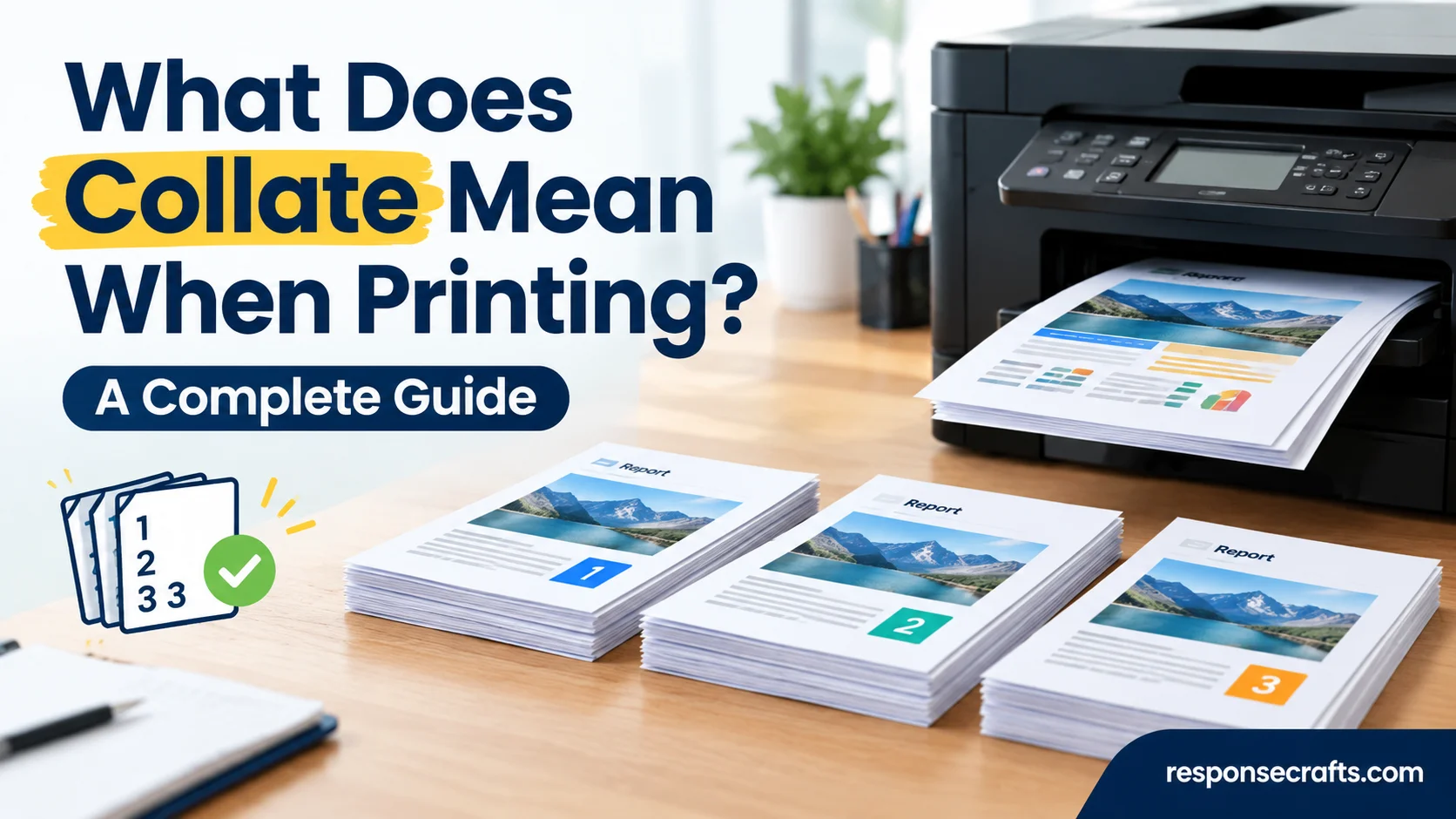
When you see the word collate in your printer settings, you might wonder what it means and when you should use it. In simple terms, collate printing means arranging printed pages in the correct order when you print multiple copies of a document. For example, if you need three copies of a five-page report, your printer can print each complete copy from page 1 to page 5. This setting saves time and helps you keep your documents organized.
Understanding what collate means when printing can make everyday printing tasks much easier, especially when you work with school assignments, office reports, business documents, or meeting handouts. Instead of sorting loose pages by hand, you can let your printer arrange them into complete sets automatically. This feature becomes especially useful when you need several copies of a long document. It reduces confusion, prevents page mix-ups, and helps you prepare paperwork with less effort.
However, the collate and uncollate options work differently, so choosing the right setting matters. When you select Collate, the printer usually produces one complete document after another. When you select Uncollated, it prints all copies of the first page, followed by all copies of the second page, and continues in that pattern. Knowing this difference helps you choose the best option for your printing needs. In this complete guide, you’ll learn how collated printing works, when to use it, how to enable it, and how it compares with uncollated printing.
Quick Answer:
Collate means printing multiple copies of a document in complete page order. Each copy contains all the pages in the correct sequence before the printer starts the next copy.
For example, if you print three copies of a four-page document with collate enabled, the printer arranges the pages like this:
- Copy 1: Pages 1, 2, 3, 4
- Copy 2: Pages 1, 2, 3, 4
- Copy 3: Pages 1, 2, 3, 4
When you turn collating off, the printer typically groups identical pages together:
- First group: Page 1, Page 1, Page 1
- Second group: Page 2, Page 2, Page 2
- Third group: Page 3, Page 3, Page 3
- Fourth group: Page 4, Page 4, Page 4
Choose Collate when each person needs a complete document. Choose Uncollated when you want several copies of individual pages grouped together.
Comparison Overview
The easiest way to understand collated printing is to compare it with uncollated printing. Both options can print the same number of copies, but they arrange the pages differently.
| Feature | Collated Printing | Uncollated Printing |
| Page arrangement | Complete document sets | Identical pages grouped together |
| Three copies of a three-page document | 1-2-3, 1-2-3, 1-2-3 | 1-1-1, 2-2-2, 3-3-3 |
| Best use | Reports, manuals, assignments, meeting handouts | Flyers, forms, notices, individual worksheets |
| Manual sorting | Usually unnecessary | Often necessary for multi-page documents |
| Number of copies | Supports multiple copies | Supports multiple copies |
| Paper consumption | Depends on page count and layout | Depends on page count and layout |
| Print quality | Not directly affected | Not directly affected |
For most multi-page documents, collating is the more convenient option. It keeps every copy together and reduces the chance of handing someone an incomplete report.
Uncollated printing still has a purpose. For instance, if you need 100 copies of a one-page announcement, grouping identical pages together can make distribution easier.
Main Differences Between Collate When Printing
The main difference between collated and uncollated printing is how the printer groups pages across multiple copies. The document’s content remains the same, but the finished paper stack looks different.
Let’s look at the most important differences.
Page Order and Organization
Collated printing arranges pages into complete sets. Each set follows the document’s normal page sequence, such as 1, 2, 3, 4, and 5.
Uncollated printing groups the same page from every copy before moving to the next page. If you print four copies of a five-page document, you’ll receive four copies of page one together, followed by four copies of page two.
Time and Convenience
Collating can save time when you need to distribute complete documents to different people. You won’t need to gather individual pages and assemble them into separate sets.
Uncollated printing can be useful when several people need the same individual page. However, multi-page documents may require additional sorting afterward.
Practical Uses
Consider a teacher preparing 30 copies of a six-page classroom activity. Collated printing produces 30 complete activity packets. With uncollated printing, the teacher receives 30 copies of page one, then 30 copies of page two, and so on.
For a stack of single-page permission forms, the difference is less important because every copy contains only one page.
How Does Collated Printing Work?
Collated printing uses the page order of a document to organize multiple copies into separate sets. The print application, printer driver, or printer itself may manage this process, depending on the device and software.
Suppose you have a 10-page report and need five copies. With collating enabled, the printer produces five complete sets, each containing pages one through ten.
Without collating, it groups the pages by number. You get five copies of page one, followed by five copies of page two, continuing until page ten.
The result depends on your selected page range, number of copies, and other print settings. For example, if you print only pages 2–6, collating organizes those selected pages into complete sets rather than printing the entire document.
Example of Collating a Three-Page Document
Imagine that you need two copies of a document containing an introduction, a main section, and a conclusion.
Collated output
Page 1
Introduction
Page 2
Main section
Page 3
Conclusion
Copy 1: Pages 1 → 2 → 3. Copy 2: Pages 1 → 2 → 3.
Uncollated output
Page 1 → Page 1 → Page 2 → Page 2 → Page 3 → Page 3
Identical pages appear together instead of forming complete document sets.
The collated stack is ready to distribute. With uncollated output, you would need to separate and assemble the pages manually.
What Happens When You Print Multiple Copies?
The number of copies determines how many sets the printer creates. The number of pages determines how many pages each set contains.
For example, printing eight copies of a 12-page report with collating enabled produces eight complete 12-page sets. That’s 96 printed pages in total, before accounting for duplex printing or other layout settings.
A few details are worth remembering:
- Copies: The number of complete documents you need.
- Pages: The number of pages in each document or selected page range.
- Collate: Whether the printer groups pages into complete sets.
- Duplex: Whether the printer places content on both sides of each sheet.
- Page range: Which pages the printer should include.
These settings work together, but they control different parts of the printing process.
How to Turn Collate On or Off When Printing
Most desktop print dialogs offer a way to choose the number of copies and control collating. The exact location depends on your operating system, application, printer model, and installed driver.
In many applications, you can find the setting by opening File → Print. Look for a Copies field and an option labeled Collate or an icon showing multiple page sets.
Follow these general steps:
- Open the document you want to print.
- Select the Print command.
- Choose the correct printer.
- Enter the number of copies.
- Find the Collate setting and enable or disable it.
- Review the print preview and other settings.
- Print a small test job if the page order matters.
If you can’t find the option, check the expanded settings or printer properties. Some applications manage collating themselves, while others rely on the printer driver.
How to Collate Pages in Windows
On a Windows computer, you can usually access collating through the application’s print dialog. Microsoft Word, PDF viewers, and other programs may present the option differently.
Try this process:
- Open your document.
- Press Ctrl + P or choose File → Print.
- Select your printer and set the number of copies.
- Look for the Collate option near the Copies field.
- Choose the collated setting if you need complete sets.
- Start printing and check the page order.
If the option doesn’t appear, open the printer’s properties or preferences. Some printer drivers provide additional copy and finishing settings there.
Important: The available controls vary by printer. A setting visible in one application may not appear in another, even on the same computer.
Read More: Based Meaning in Text: What It Means and How to Use It in 2026
How to Collate Pages on a Mac
Mac users can typically manage printing through the standard macOS print dialog. The available settings depend on the application and printer.
To check your options:
- Open the document.
- Choose File → Print or press Command + P.
- Enter the number of copies.
- Expand the print dialog if necessary.
- Look for a Collate checkbox or a similar option.
- Confirm your other settings and print.
If you can’t find Collate, inspect the available printer-specific menus. Some applications handle the setting automatically or don’t expose it directly.
For a long document, print a small number of copies first. This helps you confirm that each set contains the correct pages.
How to Collate in Microsoft Word
Microsoft Word is commonly used to print reports, assignments, letters, and other multi-page documents. Its print interface may offer collating near the copies setting.
Here’s what to do:
- Open your Word document.
- Select File → Print.
- Choose the printer.
- Enter the required number of copies.
- Select Collated or Uncollated when the option appears.
- Check the preview and print the document.
For example, if you need four copies of a seven-page report, select four copies and enable Collate. The intended result is four complete seven-page reports.
If Word doesn’t display the option, check the printer properties or preferences. The printer driver may control how copies are organized.
How to Collate a PDF
PDF files often contain reports, manuals, invoices, forms, and contracts. You can usually print multiple copies of a PDF using a compatible viewer.
Follow these steps:
- Open the PDF in your preferred viewer.
- Select Print.
- Choose your printer.
- Set the number of copies.
- Look for the Collate setting.
- Confirm the page range and other options.
- Print and inspect the finished pages.
Some PDF viewers use the system’s print interface, while others provide their own controls. If the option is missing, check the printer driver’s advanced settings.
Also, distinguish between collating printed copies and arranging pages inside a PDF file. Collating controls the printed output. It doesn’t automatically reorganize or edit the original PDF.
When Should You Use Collated Printing?
Collated printing is most useful when every recipient needs a complete copy of a multi-page document. It saves the extra step of sorting individual pages into sets.
Here are some common examples.
Reports and Business Documents
Businesses often print financial reports, project summaries, training materials, and meeting documents. Each employee may need the same complete set of pages.
With collating enabled, the printer groups each report in sequence. Staff can distribute the documents without manually assembling them.
This is especially helpful when printing many copies. Sorting a large stack by hand can take time and may introduce mistakes.
School Assignments and Classroom Handouts
Teachers may need to print worksheets, lesson plans, exams, or reading packets for an entire class.
If each student needs a six-page worksheet, collating keeps the pages together in the correct order. This reduces the risk of giving a student an incomplete packet.
However, teachers printing 30 copies of a single-page quiz may prefer either setting. Since every copy contains only one page, collating offers little organizational benefit.
Manuals and Multi-Page Instructions
Product guides, training manuals, and step-by-step instructions often rely on page order. A missing or misplaced page can make the material harder to follow.
Collated printing keeps the pages in complete sets. If the document will be bound or stapled afterward, this arrangement also makes finishing easier.
Remember that collating doesn’t automatically staple, bind, fold, or create a booklet. Those tasks require separate features or manual work.
Contracts and Documents for Multiple Recipients
Legal paperwork, agreements, and application packets often contain several pages that belong together.
Collating helps keep each packet complete before distribution. Still, you should check every set when printing documents that require signatures or contain important information.
A simple page-count check can prevent avoidable mistakes.
When Should You Use Uncollated Printing?
Uncollated printing works well when you want the same page repeated several times before moving to the next page. It can make distribution or processing easier for certain jobs.
Consider these examples.
Single-Page Flyers and Notices
Suppose you need 200 copies of a one-page event announcement. Every sheet contains the same information, so there’s no multi-page sequence to preserve.
In this case, collating makes little practical difference. You can choose whichever setting is available or most convenient.
Forms and Worksheets
A business might print hundreds of identical registration forms. A school might print a large batch of one-page practice sheets.
Uncollated printing can be useful when you want identical pages grouped together for distribution or further processing.
However, if each form is part of a multi-page packet, collating may be the better choice.
Printing Pages for Separate Tasks
Sometimes, you don’t need complete document sets immediately. For example, a team may want all copies of a reference sheet together before distributing them to different workstations.
Uncollated output makes those identical pages easy to collect.
The key rule: Choose the setting based on how you’ll use the paper after printing, not simply on the number of copies.
What Is the Difference Between Collate and Duplex Printing?
Collating and duplex printing are two separate printer features. Although you can use them together, they solve different problems.
Collating controls page order across copies. Duplex printing controls whether you print on both sides of a sheet of paper.
| Feature | Collate | Duplex |
| Main purpose | Organizes pages into complete sets | Prints on both sides of paper |
| Controls | Page sequence across copies | Printing on the front and back |
| Example | Three complete copies of a report | A report printed on both sides of each sheet |
| Paper savings | No direct reduction | Can reduce paper use |
| Can work with the other setting? | Yes | Yes |
For example, suppose you need four copies of a 20-page report. If you enable both collating and duplex printing, the printer organizes four complete reports and prints on both sides of the sheets.
Assuming the report has an even page count and uses standard two-sided printing, each copy requires 10 sheets. Four copies therefore require 40 sheets instead of 80 sheets for single-sided printing.
This example assumes the printer supports duplex printing and doesn’t need extra sheets for special layouts or finishing.
Can You Collate and Print Double-Sided at the Same Time?
Yes. Many printers support both settings simultaneously.
To do this, select the number of copies, enable Collate, and choose two-sided or duplex printing. You may also need to select the correct page orientation and binding edge.
For portrait documents, the long-edge binding option is often suitable for reports that read like ordinary books. Short-edge binding can work better for certain layouts, including some landscape documents.
Always check the preview or print a test copy. The correct binding option depends on how you want the pages to turn.
Does Collating Affect Print Quality, Speed, or Paper Usage?
Collating primarily changes how printed pages are grouped. It doesn’t change the text, images, resolution, or content of the original document.
However, the setting can affect the overall printing workflow.
Does Collating Use More Paper?
No. Collating by itself doesn’t reduce or increase the number of pages required.
If you print three copies of a 10-page document, you’ll produce 30 printed pages regardless of whether you collate them.
The total number of physical sheets depends on other settings, including duplex printing, multiple pages per sheet, and the selected page range.
For example:
- Three copies of a 10-page document printed single-sided require 30 sheets.
- The same job printed double-sided can require 15 sheets when the pages fit neatly onto both sides.
- Printing two document pages on each side can reduce sheet usage further, depending on the layout.
These savings come from changing the printing layout, not from enabling Collate.
Does Collating Make Printing Slower?
It can, although the effect depends on the printer and print job.
Some printers can produce multiple collated copies efficiently using internal memory or dedicated finishing features. Others may need to process pages differently, which can affect the time required.
Large documents, complex graphics, printer memory, and connection speed may also affect performance.
For a short document, you probably won’t notice a meaningful difference. For hundreds of copies, it’s worth checking your printer’s capabilities.
Does Collating Affect Print Quality?
No, not directly. Collating doesn’t improve or reduce image sharpness, text clarity, or color accuracy.
If your printout looks blurry, faded, or misaligned, investigate other settings or possible printer problems. Paper type, print quality, toner or ink levels, and printhead condition are more relevant.
Common Collated Printing Problems and How to Fix Them
Even though collating is straightforward, print jobs don’t always come out as expected. The cause may be a software setting, printer driver, or misunderstanding of the selected options.
Here are the most common problems and their practical solutions.
Printer Prints All Copies of Each Page Together
If you receive three copies of page one followed by three copies of page two, the printer is producing uncollated output.
Start by checking the Collate option in the print dialog. Make sure it is enabled before printing.
If the option is already enabled, check the printer properties or advanced settings. Some devices manage multiple copies through their own driver settings.
You should also confirm that the application is sending the correct number of copies. If necessary, print a short test document to see whether the issue persists.
The Collate Option Is Missing
Not every application displays the same print settings. Some hide additional options behind an expanded dialog, while others rely on the printer driver.
Try these steps:
- Expand the print dialog or open advanced settings.
- Check the printer’s properties or preferences.
- Update the printer driver if appropriate.
- Try printing from another application.
- Consult the printer’s manual if the setting remains unavailable.
A missing option doesn’t automatically mean your printer cannot collate. The feature may be managed elsewhere or handled automatically by the software.
Pages Print in the Wrong Order
Sometimes a document prints from the last page to the first. This behavior may result from a reverse-order printing setting rather than a collating problem.
Check the page-order options in your print dialog. If reverse printing is enabled, change it when you want the first page to print first.
Also, review the document itself. If pages were rearranged in a PDF editor or the selected page range excludes some pages, collating won’t correct those underlying issues.
Before printing a large batch, test a few copies and inspect their order.
Printer Settings Don’t Match the Printed Output
Some applications and printer drivers offer overlapping settings. When those settings conflict, the final output may not match what you expected.
For example, an application might request collated copies while a printer driver applies a different copy-handling preference.
To troubleshoot the issue, check both the application’s print dialog and the printer’s properties. If the problem continues, update the driver or consult the device’s documentation.
A Practical Example: Choosing the Right Printing Setting
Consider a small office preparing materials for an upcoming training session. The manager needs 25 copies of an eight-page training guide and 100 copies of a one-page feedback form.
The two jobs have different requirements.
| Printing task | Best setting | Reason |
| 25 eight-page training guides | Collated | Each participant needs a complete guide |
| 100 single-page feedback forms | Either setting | Every copy contains the same single page |
| 10 copies of a 15-page manual | Collated | Each manual needs the pages in order |
| 200 copies of a one-page notice | Either setting | No multi-page sequence needs organizing |
For the training guides, collating prevents staff from sorting 200 individual pages into 25 separate packets.
For the feedback forms, collating offers little advantage because every copy contains only one page. The office can choose the available setting that best suits its workflow.
This example highlights a useful principle: collating is most valuable when a document contains multiple pages and each copy must remain complete.
FAQs:
Does Collate Mean Print in Order?
Yes. In ordinary printer settings, Collate means organizing multiple copies into complete sets of pages in the correct sequence.
Should I Choose Collate When Printing Multiple Copies?
For a single-page document, the setting usually makes little difference. If you’re printing several copies of individual pages for a particular workflow, uncollated printing may be more convenient.
What Does Uncollated Mean on a Printer?
Uncollated means the printer groups identical pages from multiple copies together rather than arranging each complete document separately.
Can I Collate a Double-Sided Document?
When both settings are enabled, each copy remains in page order and uses two-sided printing. Check the binding edge and print preview to make sure the pages will turn correctly.
Is Collating the Same as Stapling or Making a Booklet?
Some office printers include finishing features such as stapling, folding, or booklet creation. These are separate functions, and availability depends on the printer’s hardware and software.
Conclusion
Understanding what Collate means when printing makes it easier to manage multi-page documents. The setting determines whether the printer groups pages into complete copies or groups identical pages together. Choose Collate when printing reports, manuals, assignments, and other documents that need to stay in page order. Choose Uncollated when grouping identical pages better suits your task, especially for certain forms and distribution jobs.
Remember that collating doesn’t control double-sided printing, print quality, or paper savings directly. Those functions depend on separate settings. Once you understand the difference, choosing the right option becomes simple. Check the page order, select the number of copies, and print a small test batch whenever accuracy matters.














1 thought on “What Does Collate Mean When Printing? A Complete Guide”